
Setting Up
Plugin Installation
Installation is the same as any plugin install and activate you then need to go to settings » Notify for Suremail
Set up your Notifications
You choose which of the settings to set up the overview panel is global settings and controls if it shows you message information and if you should include headers too, and can be set to truncate at a given length (Default is 1000 characters)
Each Form is independent and saves each of the individual settings
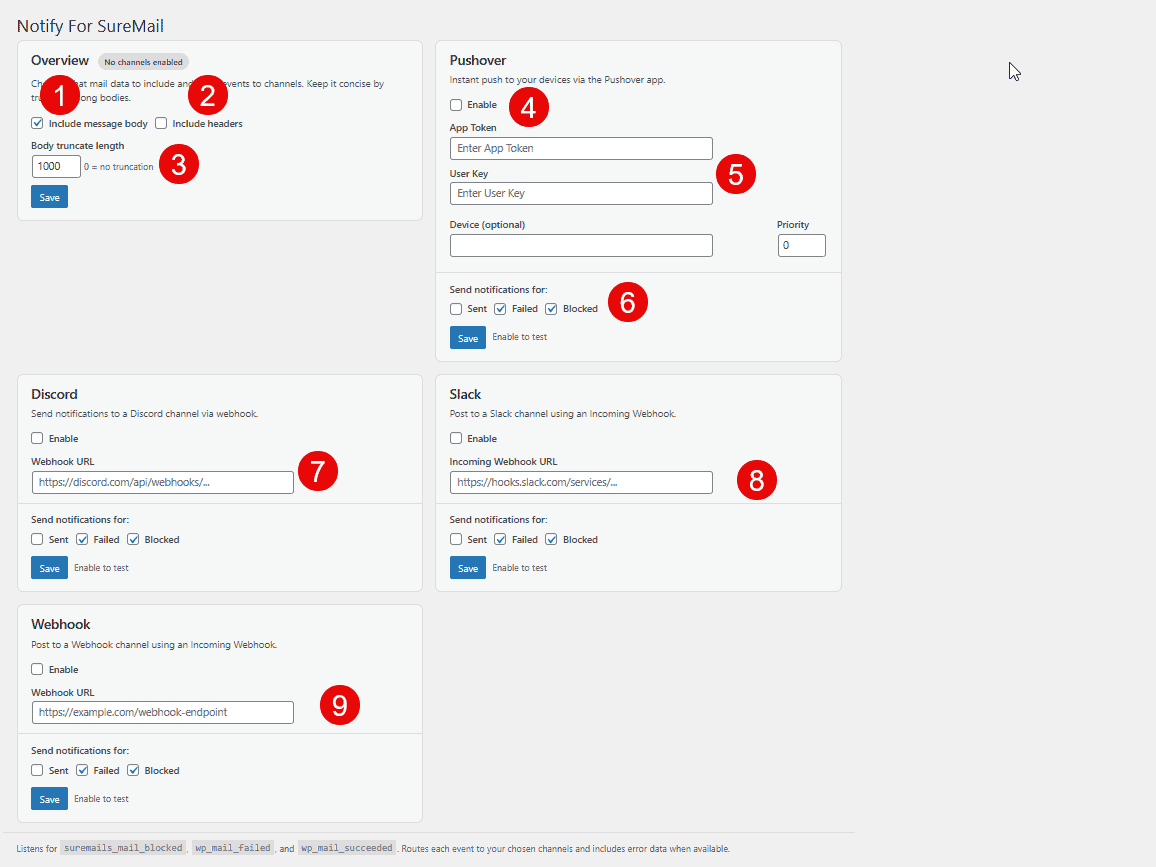
- Includes the message body with any notification
- Includes the email headers with any notification
- Sets the character truncate length default is 1000 characters. Set to zero to get the full message, if you don’t want them, just uncheck the boxes
- Enables Pushover the enable box does the same for Discord, Slack and Webhook too
- Is your App Token and User Key for Pushover
- Is the type of notifications you should get i.e on sent, failed or blocked (Checked means you get them)
- Discord Webhook URL
- Slack Webhook URL
- Generic Webhook Notification i.e to use with flowmattic
As well as being set within the user admin and being stored in the database, they can also be set in wpconfig using these settings